Cycle Projections App

Eliades Cycle Price Projections

Peter Eliades' refinements of J.M. Hurst's cycle work, built into an indicator for TradingView and TradeStation, with a Web App for Market Commentary members. Setup guides, documentation and answers are all on this page.

The Web App is included with Market Commentary and the Bundle. You'll be asked to sign in.

Overview

Fifty years of research, refined into software.

Peter Eliades’ name has been associated with stock market cycles for more than 50 years. This app, Eliades Cycle Price Projections, is the culmination of his half century of research and refinement of the JM Hurst theory of market cycle price projections. Peter’s price projection refinements have proved to be an invaluable guide to him through his decades of stock market analysis. His theories have been converted to software in the past, but have lacked the precision that Peter was seeking. In 2018, Peter was introduced to trader/programmer Steffen Scheuermann (tradeatomy.com) by his long-term market buddy and colleague Larry Williams. Within a few weeks, Peter realized the software refinements he had long sought for the computerization of his cycle projection theories were being realized by Steffen. This application is the result of years of close collaboration between Peter and Steffen, which continued until Peter's passing in 2026. If you are a serious trader or market analyst, we believe you will find the Eliades Cycle Price Projections app an invaluable tool in your market endeavors.

Follow Market Commentary to watch Steffen use the app in current market situations, and find tutorials on our YouTube channel.

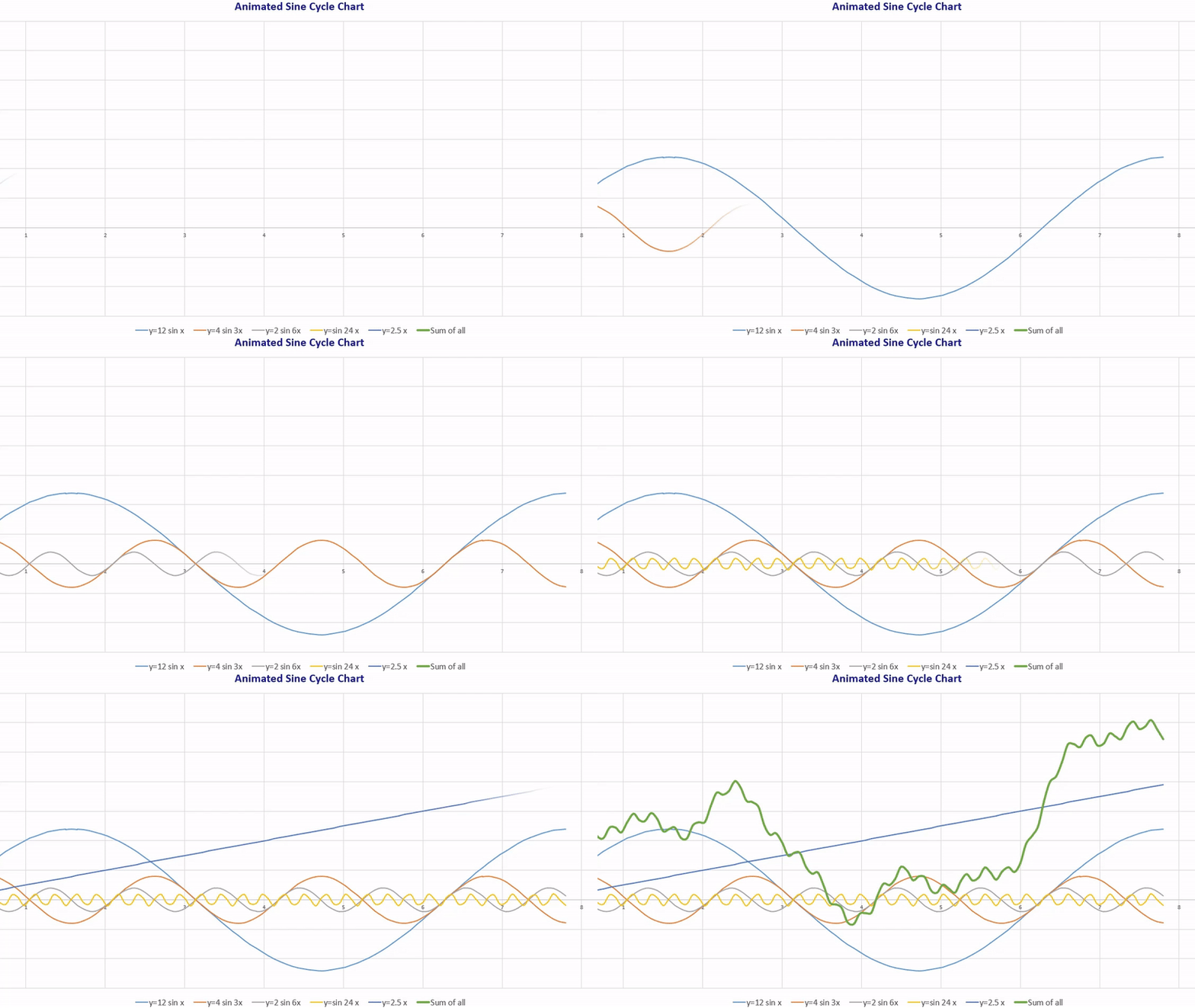
Animated sine wave illustrating a market cycle
How it works

The continuum.

The continuum comprises all possible offsets between the short and the long offset. The projections are based on the minimum and maximum possible crossing of the signal line with any offset position within the continuum. The following animation provides an intuition about how the continuum is designed.

Get started

Your setup, in a few steps.

Choose a plan and a platform to see exactly how to get running.

1 · Plan
2 · Platform

Cycles App on TradingView

No TradingView Account, yet? Use our partner link and receive a $15 coupon.

Here is how the process works:

Register or upgrade to the App membership and get the indicator

  1. Register by following this link or go to your Account Subscription section and click the change button next to your subscription plan.
  2. Activate the "Use TradingView App" switch to activate your license for use with TradingView and enter your TradingView Username on the TradingView Data section on your account page.
  3. We will notify you via email once we have granted you access to the TradingView indicator.
  4. You can now add the indicator by searching for "Eliades Cycle Price Projections" or select the Invite-only category on the left side when adding an indicator.

Cycles App on TradeStation, with an existing account

Your TradeStation platform must be version 10 to support the indicator.

If you are registering another account type with TradeStation (for example, if you have an equity account (personal) and now add an IRA, or a Futures account), you qualify for our special StockMarket Cycles clients referral offer. Please find the details in the prior section.

Here is how the process works:

Register or upgrade to the App membership and get the indicator

  1. Register by following this link or go to your Account Subscription section and click the change button next to your subscription plan.
  2. Activate the "Use TradeStation App" switch to activate your license for use with TradeStation and enter your TradeStation customer number and network ID (how to find them) on the TS Data section on your account page.
  3. You can download the app as an ELD file from the Downloads section on your account page.
  4. Import the app by double-clicking the ELD file.
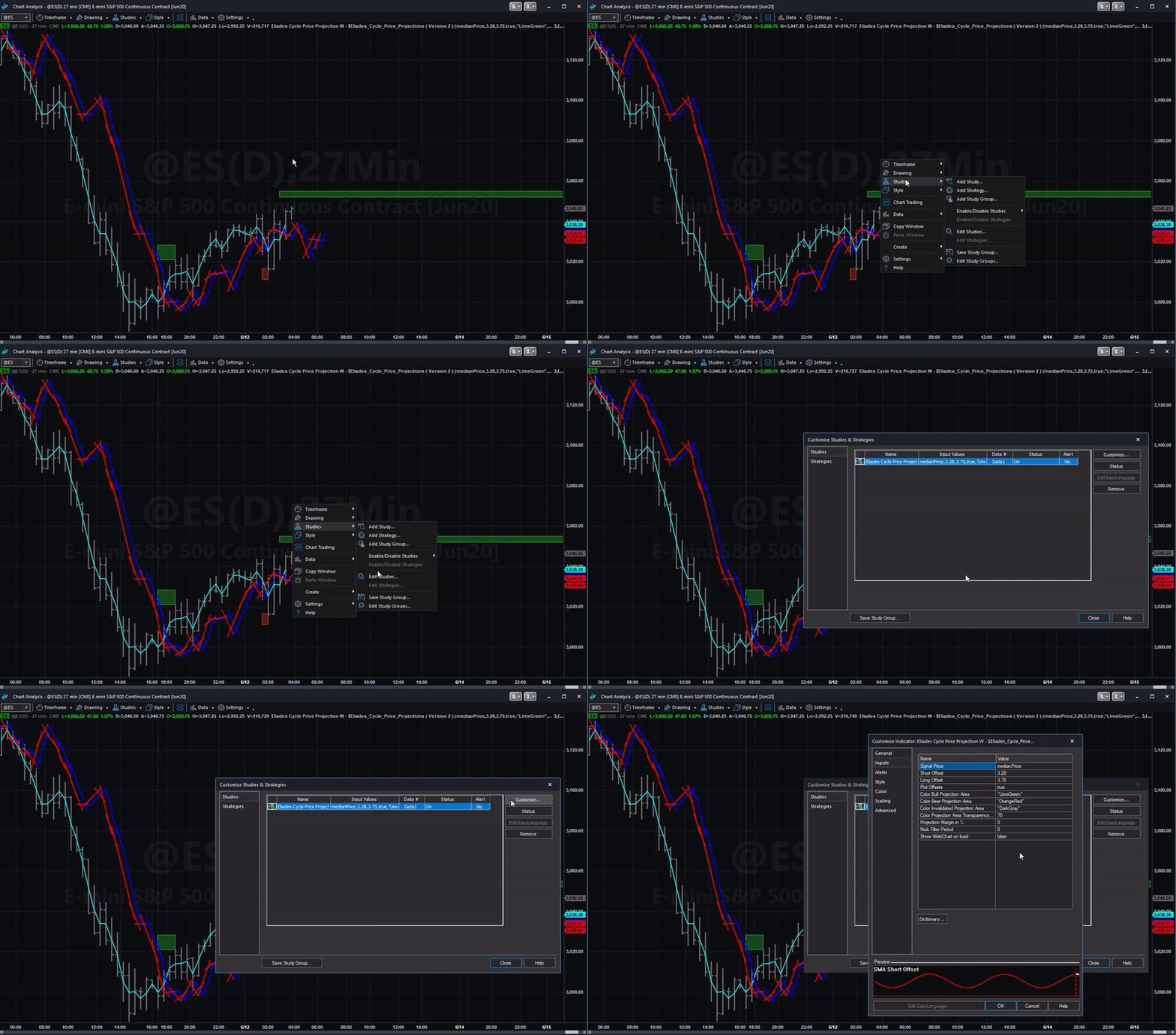
  5. You can now add the indicator to your chart by clicking on Studies > Add Study.
    Alternatively, you can use the sample workspace from the user manual.

Cycles App on TradeStation, opening a new account

Your TradeStation platform must be version 10 to support the indicator.

Here is how the process works:

Register a new TradeStation Account

  1. Use this link to register a new TradeStation account. It has our special StockMarket Cycles clients referral code 0110AFQD already embedded. We earn no commission from this referral, but you receive a 20% commission rebate up to $1000. It qualifies for a new account type. For example, if you have an equity account (personal) and now add an IRA, or a Futures account, you qualify for the offer. Choose Peter Albino as your sales representative.
  2. Fund your new account (minimum $500).
  3. Important! In order to get the rebate applied, you have to get in contact with your representative, Peter Albino (PAlbino@TradeStation.com). He will add the rebate for you.

Please double check the information provided above with TradeStation for its validity.

Register or upgrade to the App membership and get the indicator

  1. Register by following this link or go to your Account Subscription section and click the change button next to your subscription plan.
  2. Activate the "Use TradeStation App" switch to activate your license for use with TradeStation and enter your TradeStation customer number and network ID (how to find them) on the TS Data section on your account page.
  3. You can download the app as an ELD file from the Downloads section on your account page.
  4. Import the app by double-clicking the ELD file.
  5. You can now add the indicator to your chart by clicking on Studies > Add Study.
    Alternatively, you can use the sample workspace from the user manual.

Bundle on TradingView

Make sure to use our Bundle offer that saves you more than 25%.

No TradingView Account, yet? Use our partner link and receive a $15 coupon.

Here is how the process works:

Register or upgrade to the Bundle membership and get the indicator

  1. Register by following this link or go to your Account Subscription section and click the change button next to your subscription plan.
  2. You gain immediate access to the market commentary.
  3. Activate the "Use TradingView App" switch to activate your license for use with TradingView and enter your TradingView Username on the TradingView Data section on your account page.
  4. We will notify you via email once we have granted you access to the TradingView indicator.
  5. You can now add the indicator by searching for "Eliades Cycle Price Projections" or select the Invite-only category on the left side when adding an indicator.

Bundle on TradeStation, with an existing account

Your TradeStation platform must be version 10 to support the indicator.

Make sure to use our Bundle offer that saves you more than 25%.
If you are registering another account type with TradeStation (for example, if you have an equity account (personal) and now add an IRA, or a Futures account), you qualify for our special StockMarket Cycles clients referral offer. Please find the details in the prior section.

Here is how the process works:

Register or upgrade to the Bundle membership and get the indicator

  1. Register by following this link or go to your Account Subscription section and click the change button next to your subscription plan.
  2. You gain immediate access to the video commentary.
  3. Activate the "Use TradeStation App" switch to activate your license for use with TradeStation and enter your TradeStation customer number and network ID (how to find them) on the TS Data section on your account page.
  4. You can download the app as an ELD file from your Downloads section on the account page.
  5. Import the app by double-clicking the ELD file.
  6. You can now add the indicator to your chart by clicking on Studies > Add Study.
    Alternatively, you can use the sample workspace from the user manual.

Bundle on TradeStation, opening a new account

Your TradeStation platform must be version 10 to support the indicator.

Make sure to use our Bundle offer that saves you more than 25%.

Here is how the process works:

Register a new TradeStation Account

  1. Use this link to register a new TradeStation account. It has our special StockMarket Cycles clients referral code 0110AFQD already embedded. We earn no commission from this referral, but you receive a 20% commission rebate up to $1000. It qualifies for a new account type. For example, if you have an equity account (personal) and now add an IRA, or a Futures account, you qualify for the offer. Choose Peter Albino as your sales representative.
  2. Fund your new account (minimum $500).
  3. Important! In order to get the rebate applied, you have to get in contact with your representative, Peter Albino (PAlbino@TradeStation.com). He will add the rebate for you.

Please double check the information provided above with TradeStation for its validity.

Register or upgrade to the Bundle membership and get the indicator

  1. Register by following this link or go to your Account Subscription section and click the change button next to your subscription plan.
  2. You gain immediate access to the video commentary.
  3. Activate the "Use TradeStation App" switch to activate your license for use with TradeStation and enter your TradeStation customer number and network ID (how to find them) on the TS Data section on your account page.
  4. You can download the app as an ELD file from your Downloads section on the account page.
  5. Import the app by double-clicking the ELD file.
  6. You can now add the indicator to your chart by clicking on Studies > Add Study.
    Alternatively, you can use the sample workspace from the user manual.

Using a Mac

In June 2026, we released our indicator on TradingView. TradingView is easily accessible for Mac users.
Alternatively, there is an option to run TradeStation on a Mac using a virtual machine.
Here is a link to a blog article on How to Run TradeStation on a Mac.

Market Commentary only

Here is how the process works:

Register or upgrade to the Market Commentary membership on our website

  1. Register by following this link or go to your Account Subscription section and click the change subscription button.
  2. You gain immediate access to the market commentary.
See plans & pricing 7-day free trial available on all plans.
Tutorials

Watch it in action.

Demos and tutorials for the TradingView version, from the StockMarket Cycles YouTube channel.

Default offsets

Peter's cycle offsets for every timeframe.

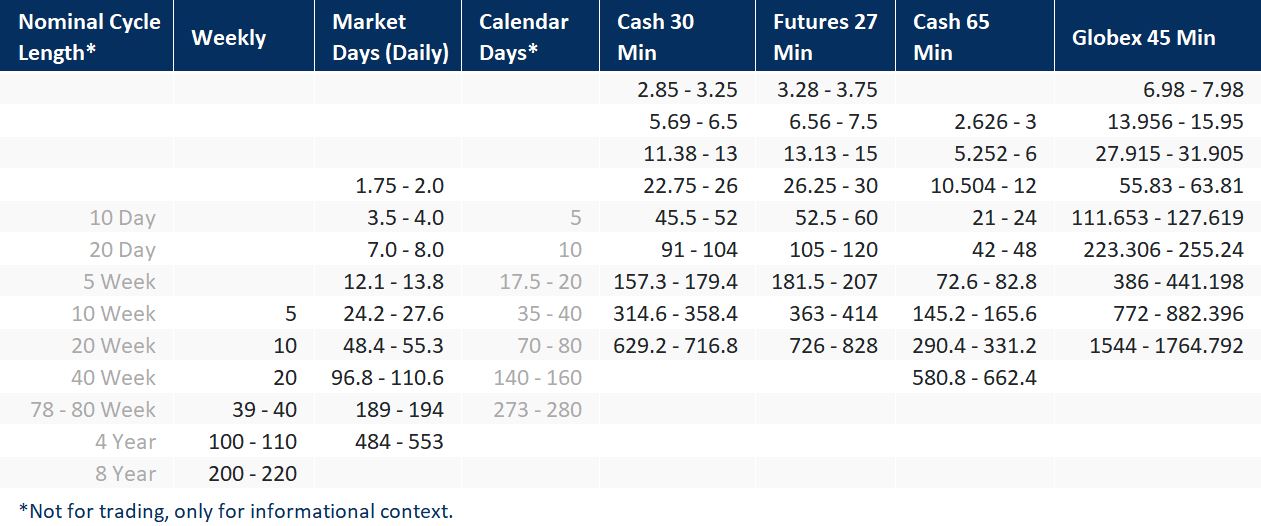
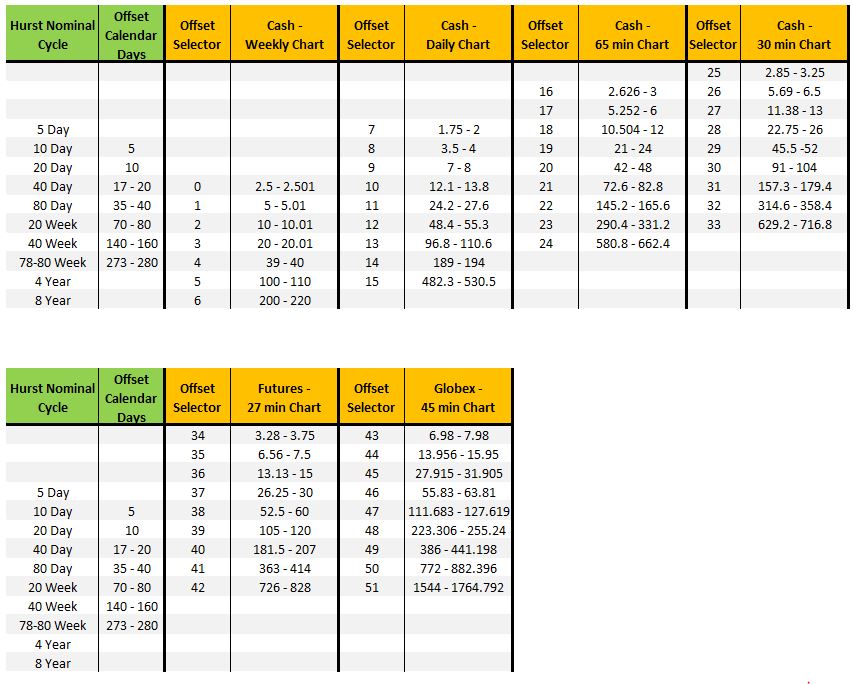
The offsets are interrelated across timeframes. For example, a nominal 10-week projection can be analyzed with a 5-week offset on a weekly chart, 24.2–27.6 market days on a daily chart, or 363–414 periods on a 27-minute futures chart. All of these are available as presets in the app.

Nominal cycle length* Weekly Market days (daily) Calendar days* Cash 30 min Futures 27 min Cash 65 min Globex 45 min
––––2.85–3.253.28–3.75–6.98–7.98
––––5.69–6.56.56–7.52.626–313.956–15.95
––––11.38–1313.13–155.252–627.915–31.905
––1.75–2.0–22.75–2626.25–3010.504–1255.83–63.81
10 day–3.5–4.0545.5–5252.5–6021–24111.653–127.619
20 day–7.0–8.01091–104105–12042–48223.306–255.24
5 week–12.1–13.817.5–20157.3–179.4181.5–20772.6–82.8386–441.198
10 week524.2–27.635–40314.6–358.4363–414145.2–165.6772–882.396
20 week1048.4–55.370–80629.2–716.8726–828290.4–331.21544–1764.792
40 week2096.8–110.6140–160––580.8–662.4–
78–80 week39–40189–194273–280––––
4 year100–110484–553–––––
8 year200–220––––––

*Not for trading, only for informational context. Intraday columns are in bars of that length; cash 30 and 65 minute charts assume 9:30 am to 4:00 pm ET, futures 27 minute charts daytime hours only, Globex 45 minute charts nearly 24 hours.

Documentation

The full guide.

Choose your platform. Some features differ between TradingView and TradeStation.

1. Features

  • The app uses Peter’s refinements of J.M. Hurst’s theories of projecting future prices for stock market indexes and other markets.
  • The app provides the user with default offsets that have proven invaluable for market analysis.
  • Those default offsets can be used with weekly, daily, and even intraday charts.
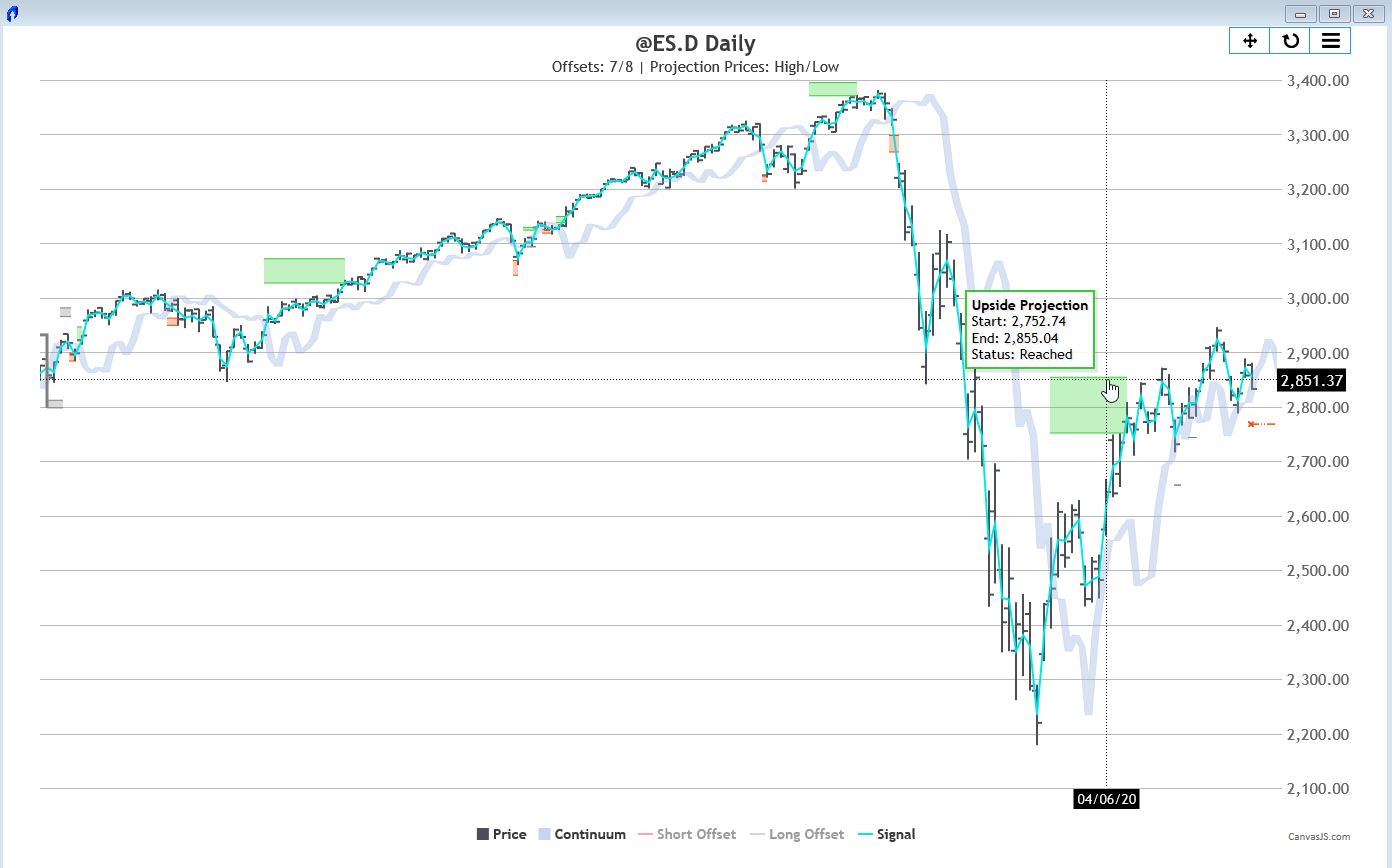
  • By using these default offsets, the user will see specific price predictions appear on the charts as rectangles.
  • See Peter’s chapter in New Thinking in Technical Analysis: Trading Models from the Masters – Rick Bensignor, Wiley 2000. The chapter can be downloaded here.
  • This documentation is for the TradingView version of Eliades Cycle Price Projections.

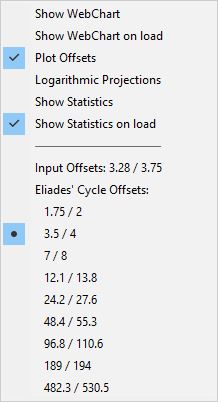
1.1 Eliades' Cycle Offsets

The app comes with the Eliades' cycle offsets selectable from the indicator Inputs. These are the time-proven cycles for stock market indices that Peter used for decades. They are derived from JM Hurst's original work on cycles.

There are different cycles for the different markets (futures, cash/etf) and timeframes.

It shows you that the offsets are almost all interrelated. So, for example, when you want to see if nominal 10 Week projections have been generated, you can analyze a 5 week offset on a weekly chart, 24.2-27.6 day (market days) offsets on a daily chart, 314.6-358.4 periods offsets on a 30 minute cash chart, 363-414 periods offsets on a 27 minute futures chart (daytime prices only—not including Globex), 145.2-165.6 periods offsets on a 65 minute cash chart, and 386-441.198 periods offsets on a 45 minute Globex chart (including all 24 hours of trading).

Notice the column headed Calendar Days. Those offsets were originally used in Hurst’s seminal work on cycle projections. Charts were constructed with spaces for Saturdays, Sundays, and holidays. Now you can see that a nominal 10 day projection is generated by its half-span offset, namely 5 calendar days, and you can see the reason why some nominal cycles don’t seem to use half-spans to generate projections. What we had to do long ago was translate periods in calendar day charts to equivalent periods on market day charts. That is why a nominal 10 day projection is actually generated by 3.5-4.0 period offsets.

Eliades' Cycle Offsets Presets
Click to enlarge

1.2 Nicks

“Nicks” describe short-term crossings of the signal line with the continuum.

As a way of handling projections affected by noise, we introduced the Nick Filter Period.

This allows the user to filter out nicks (noise) from the projection algorithm.

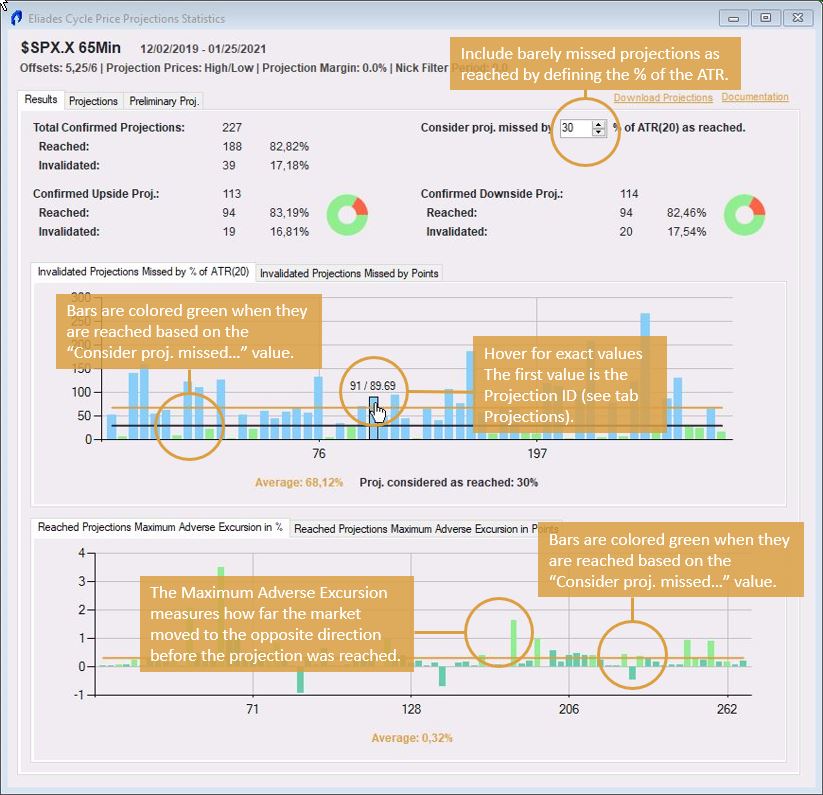
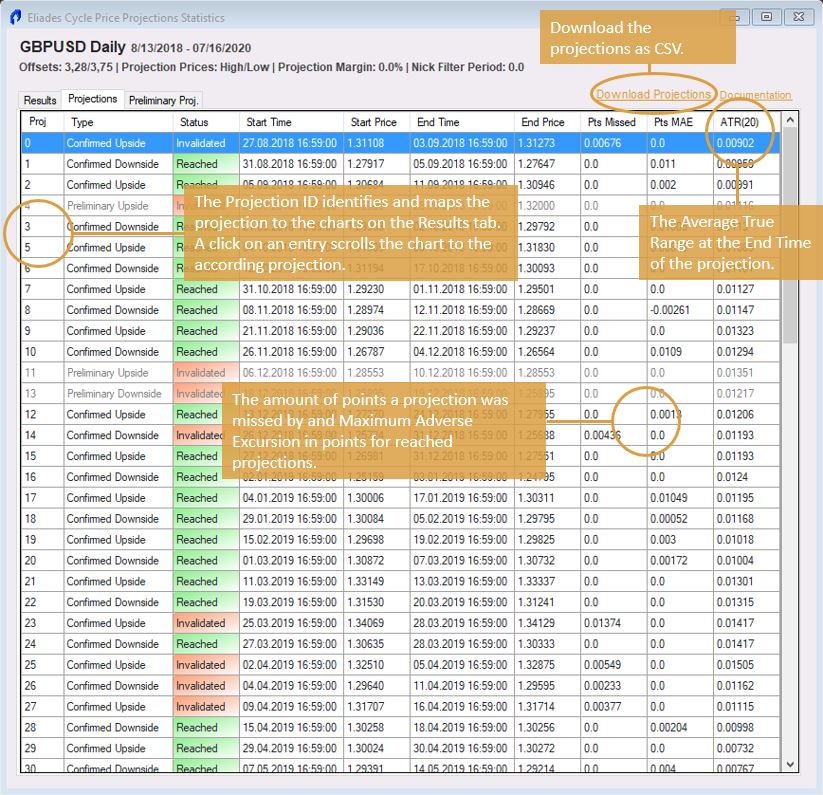
1.3 Statistics

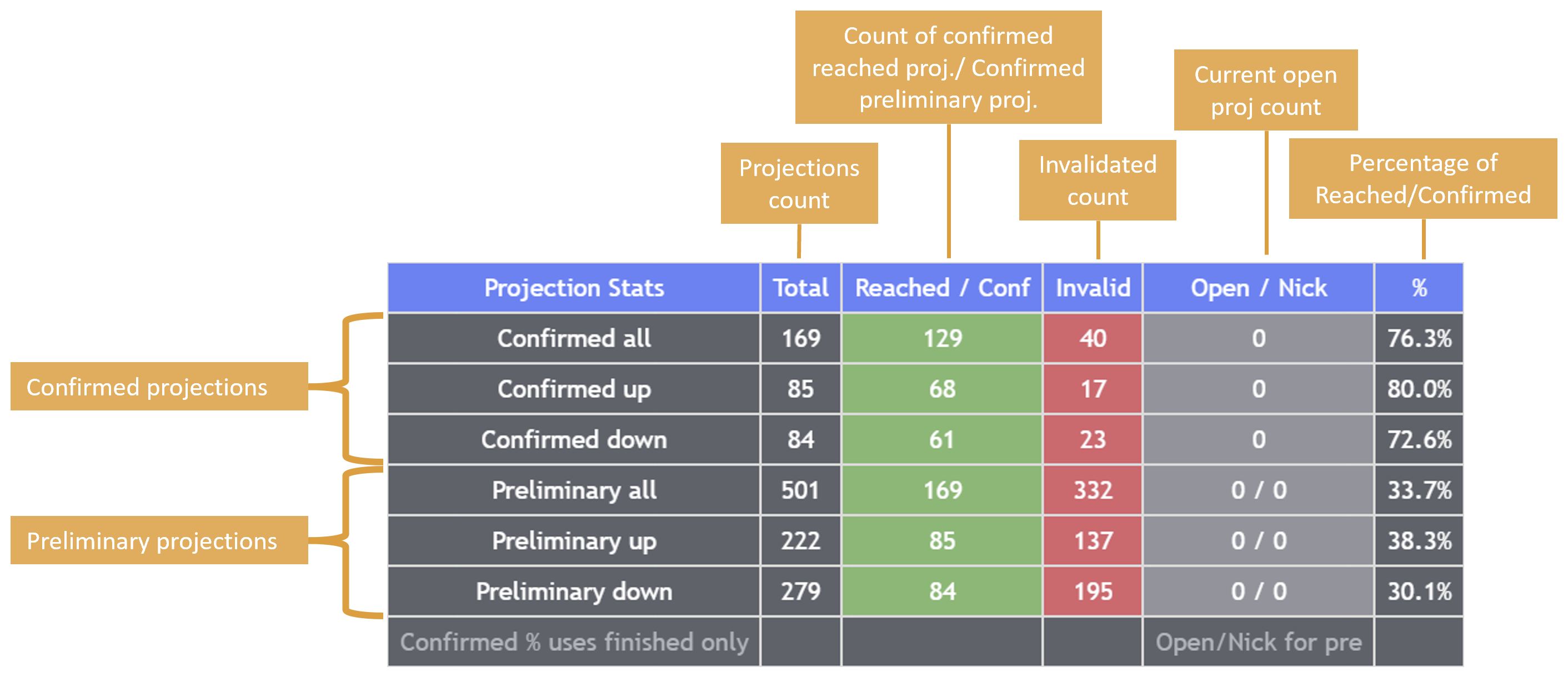
The statistics introduce a powerful way of analyzing the projections systematically.
The core of the statistics revolves around the simple success rate of confirmed projections and the rate of preliminary projections confirmed to better understand reached and invalidated projections.

TradingView Statistics
Click to enlarge

2. Customize Indicator

Following is a list of all the inputs, their meaning and available values.

Signal Price
Price used for the projection calculations.
Closing Price Projections
High/Low
Manual Short Offset
Length of the short offset.
Decimal value.
Manual Long Offset
Length of the long offset.
Decimal value.
Use Eliades' Cycle Offsets
If on, will overwrite the manual offsets, but only for the respective chart interval
Checked = on
Unchecked = off
27m offset preset
Select from Eliades' Cycle Offsets for 27 minute chart.
30m offset preset
Select from Eliades' Cycle Offsets for 30 minute chart.
45m offset preset
Select from Eliades' Cycle Offsets for 45 minute chart.
65m offset preset
Select from Eliades' Cycle Offsets for 65 minute chart.
Daily offset preset
Select from Eliades' Cycle Offsets for daily chart.
Weekly offset preset
Select from Eliades' Cycle Offsets for weekly chart.
Plot Offsets
Turn the plotting of the offsets on/off.
Checked = on
Unchecked = off
Short Offset Color
Color of the Short Offset plot.
Long Offset Color
Color of the Long Offset plot.
Offsets Line Width
Width of the offset plot lines.
Bull Projection Color
Color of upside projections.
Bear Projection Color
Color of downside projections.
Invalidated Projection Color
Color of invalidated projections.
Projection Color Transparency in %
Transparency of the projections.
0-100%
Projection Margin in %
Adds the input percentage as a margin of error of the complete projected move.
Decimal value.
Nick Filter Period
Define a period in which ‘nicks’ are ignored.
Decimal value.
Logarithmic Projections
Toggle between logarithmic/linear projections.
Checked = log
Unchecked = linear
Show ChartInfo
Toggle ChartInfo label.
Checked = on
Unchecked = off
ChartInfo Position
Position of the ChartInfo label.
ChartInfo Text Color
Color of the ChartInfo label text.
ChartInfo Text Size
Size of the ChartInfo label text.
Show hover tooltip labels
Acivates tooltip labels at the top left corner of projections.
Checked = on
Unchecked = off
Only open projections
Hover tooltip labels only on open projections.
Checked = on
Unchecked = off
Max tooltip labels
Maximum number of tooltip labels.
Show Statistics Table
Toggle Statistics table.
Checked = on
Unchecked = off
Statistics Start Date
Only projections created on or after this date are included in the statistics.
Statistics Table Position
Position of the Statistics table.
Display Mode
Allows to set the app into Desktop or Mobile mode⁠. Mobile mode is intended to be used on mobile devices, with a compact version of ChartInfo, Statistics Table and more margin from the top of the screen to avoid overlap with status line⁠.
Prune historical vectors
Use this in case you need to improve performance. If on, the below inputs are used to prune historical data.
Checked = on
Unchecked = off
Keep ribbon history bars
Maximum number of ribbon history bars.
Keep offset rows
Maximum number of offset rows.
Keep offset segment rows
Maximum number of offset segment rows.
Keep projection rows
Maximum number of projection rows.
Keep projection boxes
Maximum number of projection boxes.


3. Updates

Updates are automatically distributed and TradingView notifies you via email for updates.
You may see an “Update available” symbol when a newer version exists compared with the version on the chart. Click the update/refresh symbol next to the indicator name. Alternatively, remove the indicator and add it again from Indicators → Invite-only.

4. Videos

4.1 Primer Eliades Cycle Price Projections

4.2 What Really Makes the market move Up and Down

4.3 What the Heck is a "Nick"?

FAQ

Common questions.

General

Is the app available on other platforms?

There are too many different platforms out there and most of them don't support all the possibilities we need. In addition to TradeStation and TradingView, the app is available as a platform-independent Web App on this website. The Web App is included with the Market Commentary and Bundle subscriptions. See Plans & Pricing for details.

Can I switch between TradeStation and TradingView?

Being subscribed to App or Bundle comes with one license that you can use either on TradeStation or TradingView.
You can switch between TradeStation access and TradingView access on the Account page.
There are two sections, TradeStation Data and TradingView Data that each have a "Use TradeStation App" / "Use TradingView App" switch.
You can provide your Customer Number & Network ID for TradeStation and your Username for TradingView.
If you want to use the app on both TradeStation and TradingView simultaneously, you can add the "App Add-on" subscription (additional $29/month) at the top of the page in the section Subscriptions.

Do the cycle projections work with individual stocks?

Yes, on a limited list of individual stocks. In the Web App these currently include Apple, Amazon, Alphabet, Meta, Microsoft, Nvidia, Palantir and Tesla, alongside stock indexes, sector ETFs, futures and metals.

How do I subscribe?

Please check our Get Started guides for your respective starting situation.

What does "nominal" mean?

Nominal simply means "name". A nominal 10 week projection refers to 10 calender weeks. The offsets used for a nominal 10 week projection factor in holidays and weekends. Therefore, the offsets represent 10 calender weeks in trading days.

You can find all the nominal cycles and the according offsets in chapter 1.3 Eliades' Cycle Offsets of the documentation.

What is the continuum?

Please read this chapter from the info section.

TradingView

How do I subscribe to the TradingView app?

Please check our Get Started guides for your respective starting situation.

Are there differences between the TradingView and TradeStation versions?

Yes. Some features differ because TradingView and TradeStation are different platforms.
The most notable differences are:
TradingView does not support WebChart.
TradingView does not support click events, projections cannot be clicked to show additional lines and labels.
TradingView does not support right-click context menus.
Statistics are not interactive on TradingView. Instead, a simplified statistics table is displayed directly on the chart.

TradeStation

How do I subscribe to the TradeStation app?

Please check our Get Started guides for your respective starting situation.

Which default offsets should I use for each bar interval?

Please find the default Eliades' offsets in this chapter in the documentation.

Do the default input offsets have a special meaning?

There is no special meaning. They are valid default offsets from the Eliades' cycle offsets and we didn't want to default the inputs 0.

Can I use the TradeStation app on a Mac?

In short, yes. Check out our respective section in our Get Started guides!

How do I receive updates?

Please read this chapter in the documentation.

The TradeStation app is very slow. What can I do?

Please read this chapter in the documentation. In case of unusual behaviour, please contact us.

The Web App

Every projection, in your browser.

No charting platform needed. Open stock indexes, sector ETFs, selected stocks, futures and metals to see confirmed and preliminary projections, the Projections Matrix and your favorites.

Open the Web App Included with Market Commentary and the Bundle. Not a member yet? See plans & pricing.